2013年11月26日星期二
凭刷POS机刷卡数据 可贷款百万
凭刷POS机的数据,你可贷款百万1
今年6月以来,在阿里巴巴、百度、腾讯等互联网巨头们的搅动下,互联网金融愈发凶猛,对传统金融的冲击愈发强烈。其中受到冲击最严重的便是银行的存款,根据央行最新发布的10月份金融统计数据报告显示,10月份人民币存款减少4027亿元,居民存款减少
相关公司股票走势
招商银行10.83+0.010.09%
光大银行2.83+0.000.00%
平安银行13.47-0.03-0.22%
中信银行3.98-0.01-0.25%
民生银行8.47-0.04-0.47%
了8967亿元,成为今年以来存款流失最为严重的月份。
面对互联网金融的崛起,银行也渐渐感受到了大数据时代来临所面临的压力,同时也意识到深挖数据所带来的强大竞争力,互联网和金融“双向融合”的趋势愈加明显。其中最鲜明的例子便是,今年以来多家股份行开始推行线上的贷款业务—POS贷。
针对小贷
多家银行推POS网贷
依靠手中掌握着海量商户的真实交易数据,阿里小贷获得了巨大的成功,但不少人断言阿里小贷的经验难以复制,原因就是其他企业公司包括银行在内,难以掌握海量用户的交易数据。
不过,随着银行和银联的合作,POS贷的问世可谓打破了这一断言。所谓POS贷,即各银行主要依据小微企业POS机刷卡交易的流水,来测算其经营规模,再根据交易流水来给予小微企业贷款。据记者了解,目前招商银行、中信银行、民生银行、平安银行、光大银行均推出了此类产品。
某银行的相关工作人员告诉记者:“POS商户网络贷款的优势很明显,它不用抵押物,只需提供身份证、执照、银行卡复印件,即可申请纯信用贷款。”
这种POS贷的核心便是银联系统所掌握的海量用户交易流水。公开资料显示,银联商务的业务网络覆盖了全国所有地级以上城市,合作商户和维护的POS终端分别超过200万户、300万台,占银行卡收单市场40%的份额。
通过这种方式,银行可以看出企业的运营能力、资金需求等数据和信息,从而掌握企业真实的信息。根据小微企业POS机刷卡交易的资金结算量及稳定性的不同,小微企业最高可获得50万—150万元的贷款,无需抵押、担保,年化贷款利率12%—14.4%,最快几分钟即可申请成功,并且按天计息,随借随还,一次申请可循环使用。
竞争激烈
各行力拼网贷市场
据了解,目前大多数银行在网络循环贷的基础上,加紧研发和推广各类线上融资贷款,力拼“网贷”市场。
民生银行全新推出了“微贷”金融服务品牌。“用户只要办理一张我们的银行卡,日常的经营、结算全部在这张银行卡上进行,我们就可以根据客户在银行卡上的结算情况来发放贷款。”民生银行上述人士说道,民生银行的微贷同样是一款线上产品,无需任何抵押、担保,24小时内即可轻松获得最高50万元人民币循环信用贷款,现在还能支持移动终端(手机、IPAD等)进行在线申请。
今年6月初,招商银行与国内最大的外贸电子商务网站敦煌网签约,并发行了“敦煌网生意一卡通”联名卡。招行将根据该网站注册商户的交易和信用记录,为其提供包括融资、结算、理财、生活等小微金融服务。
平安银行则采取自建电商平台与其他已经成熟的电商平台合作的模式,并通过打通产业链,兼顾全行业上下游的模式,分行业开展线上金融业务。此外,平安银行还想通过电销模式推广微小贷款业务。
关于POS贷>
现身说法:贷款50万5分钟搞定
在朝天门做批发生意的小陈,成功申请获得了POS网络贷款。他告诉记者,当时他在线完成了贷款申请资料的填写,通过了银行网络信贷业务平台的自动审批,当场就收到了50万元贷款到账的手机短信。
“当时我对这种贷款也是抱着将信将疑的态度,不过资金周转迫在眉睫,我还是决定试试。我先去网点开通了网上银行,然后就在网络上申请POS贷款。”小陈打开了自己的网银向记者进行了演示。
“看,进入网银登录界面就有POS网络贷款的选项,整个流程都有提示,按着提示一步步来就可以了。”在小陈输入身份证号后,网上银行显示,他是银联商务POS机商户,小陈点击了“贷款申请”这栏,进入了相关资料的填写。“填写完资料后,贷款额度就批下来了,我获得了50万的贷款,整个过程不超过5分钟吧!”小陈说。
本版文/重庆晨报记者 赵鹏 吴黎帆 刘洋
优点多多:随借随还,按日计息
据中信银行重庆分行网络银行部产品经理王珏介绍,“POS商户网络贷款”是中信银行专门针对生产经营良好的小微企业和个体商户量身定做的网络贷款产品。适合短期资金需求在50万元以内的银联商务POS商户。其特点是实现了贷款申请、审批、放款和还款等业务环节的全线上管理模式。
“我们有一整套的POS流水数据模型,依靠这些数据模型,结合客户的个人征信记录,电脑会自动计算出相应的贷款额度,然后自动放款给客户。”王珏强调说,只要客户的资料、操作过程等没有问题,申请POS商户贷最快只需要几分钟时间,而且客户从申请贷款到还款都不需要到银行柜台办理,可以完全通过网银来进行。
民生银行推出的流水贷与之类似,同样是针对使用POS机进行结算的商户,不过民生银行的授信额度更高,商户最高可申请150万元的贷款,贷款期限可以达到1年。“民生银行会进行行业的细分,即不同的行业在申请流水贷时有不同的数据标准,最大程度地帮助各行业的小微企业。”民生银行相关人士介绍。
对于企业主来说,POS贷的最大好处就是无需抵押、担保且申请贷款方便、迅速。此外,按日计息、随借随还,无疑也为企业主们节省了不少的贷款成本。据王珏介绍,从10月底中信银行重庆分行推出这款产品以来,短短半个月的时间已有近百家小微企业申请了POS贷。
据王珏介绍,目前重庆大约有3万户商户使用银联系统的POS机进行结算。“据我们了解,银联在每个城市的份额基本都是最高的。但除了银联之外,我们还会寻找其他合适的第三方支付公司合 也有风险:成银行“圈贷”市场
记者在采访中了解到,商家在申请POS网络贷款时,银行一般都会要求他们先安装POS机。而且是本行的POS机或者合作的POS机才可以申请。
对此,重庆某银行的相关人士告诉记者:“各家银行都巴不得商户安装自己的POS机,毕竟自己的POS机处理起来也更加方便,而且对商家申请资质、交易信息比较熟悉。另一方面,别的POS机,即使你想去合作,他们也不会轻易给你数据,银行也在互掐。”
某业内人士表示,随着网贷的价值逐渐被挖掘,POS机正在成为各大银行跑马圈地的新市场,但风险也暗藏其中。“虽然POS机积累的商户流水量、反映的商户经营状况等为银行信贷提供了依据,但由于这一数据不能与商户其它经营数据互联互通,比如许多商户可能同时配备不止一家的POS机,在数据获取方面存在较大差异和难度,甚至有的商户可能已经在某P2P网贷平台有了贷款,所以POS机流水能否准确地反映商户的还贷能力和信用等级有待商榷,毕竟各家银行都有自己的‘如意算盘’。”
贷款申请流程>
1.登录个人网银或银联商务客户管理平台系统提出申请;
2.填写相关资料上传身份证文件;
3.提交贷款申请;
4.后台自动完成审核申请;
5.审核通过后24小时内登录网站确认放款信息;
6.签署放款协议;
7.提款。
(以中信银行为例)
部分银行POS贷介绍
银行 产品 贷款 申请 最高贷款
名称 期限 速度 额度(元)
中信银行 POS 3个月 数分钟 50万
商户网贷
民生银行 流水贷 12个月 1天 150万
光大银行 POS 24个月 1天 100万
快贷
招商银行 POS 12个月 1天 150万作。”民生银行的相关人士说道。


2013年11月24日星期日
英媒称两场战争让解放军明白不能再靠农民军
英国《经济学家》11月23日文章,原题:保持警惕 副题:经济成就给了中国更大分量,但尚不足以打破平衡
1980年中国占全球产出的比重才2.2%,未来10年将跃升至20%。不久前中国人还活在围墙内,如今满世界找原材料。中国是亚洲多数国家的最大贸易伙伴,其外交受到似乎无穷的大订单支持……外界看来,中国经济将彻底改变世界。但鲜被提及的问题是,北京究竟如何将被追捧的经济奇迹转化为地缘政治力量。
自然,中国变得越来越自负。财富增长刺激了权力欲望,它要求更多尊重,不愿意接受拒绝。财富增长为打造强军提供了资金。目睹美国的精确武器在海湾战争和科索沃发挥破坏性威力后,中国认定不能再依赖农民大军。苏联的崩溃又说明与美国军备竞赛的危险。于是北京将资源集中于两点:能武力夺取台湾和阻止美国军舰进入其沿海。中国潜艇、导弹、太空和网络武器并用,希望阻挠拥有航母和海外基地的美国。
然而,在经济、军事和外交每个领域,中国打破美国体系的空间仍然有限,可能今后多年都将如此。
一个经济体的地缘政治效应,不仅源自经济产出,也源自财富。中国人均收入仍与匈牙利相当,还不及美国人一半富有。美国的技术、人力和金融资本更雄厚,在地缘政治上,这些都比中国单纯的人头数更有效。
此外,中国经济繁荣离不开与外界的密切联系,挑战美国必然对其经济增长造成重创。北京若试图抛售巨额美债,不仅会损失投资,还会受累于由此导致的全球衰退,中国作为投资者和供应者的名声也将毁于一旦。对一个通过贸易而繁荣的经济体而言,这像自杀。若为国家荣耀而牺牲商贸,中国不仅会丧失最大客户,且其经济仰赖的霍尔木兹和马六甲海峡都处于美国控制下。打造蓝水海军是个办法。但即便中国继续增加、美国继续削减军费,双方差距仍会巨大。更重要的是,别忽视美军在战斗中积累的经验,而中国的作战系统和学说从未经历实战检验。
俄罗斯目前是中国最有用的盟友,但若北京真挑战美国,莫斯科或许惊慌失措,且中俄间的问题由来已久。而柬埔寨、巴基斯坦等国在挑战美国方面帮不上什么忙……中国挑战只是地区性的,对美国霸主之位不构成挑战。即便构成,也要在军事和外交上翻越大山,世界会有几十年的预警。
(原标题:英媒称两场战争让解放军顿悟不能再靠农民军队)
河南开封农信社招考现阴阳成绩单:29分变85.5
有网友近日以“开封农信社还我们考生公平”为题在网上发帖,举报河南开封市农村信用社在2013年员工招聘考试中批量修改考生成绩:“有24个人的成绩改动过,从三四十分改成80多分,进了面试。”
记者调查发现,开封农信社此次招考确实疑点重重,不仅出现两份不同的成绩单,在考生举报后,开封农信社又发布了不同的面试名单,最初面试名单中被举报的24人在最新发布的面试名单中不见踪影,另外20名成绩靠前的考生入替。
【事件】
阴阳成绩单:24人改分
今年10月31日,河南省农村信用社联合社开封市办公室发布2013年开封市农村信用社招考公告,宣布其辖内兰考、杞县、通许、尉氏四县农村信用合作联社计划面向全省招聘工作人员120名。11月16日全省2000余名考生进行了笔试,11月19日,面试人员名单及成绩公布。
一位考生向记者反映,他从河南农信社官方网站下载了用EXCEL表格制作的面试名单,发现里面只有进入面试的187名考生的成绩,其他考生的成绩并不在其中。后来,经过熟悉EXCEL使用方法的人士指点,他发现这份EXCEL表格中还有一份隐藏的成绩单,这份成绩单显示了所有参加此次招考的考生姓名及成绩。
令他感到意外的是,通过对比,他发现进入面试名单的考生中,有24人在两份成绩单中成绩不符,他们在完整版成绩单上的成绩只有三四十分,而在进入面试人员成绩单上,他们的成绩却变成了80多分。
记者拿到了这份EXCEL表格,发现确如这位考生所说。记者发现,有些考生在完整版成绩单上成绩只有29分,却进入了面试名单,成绩也变成了85.5分,若按照完整版成绩单上的成绩,这些成绩不符的考生均无法进入面试名单。
【追访】
新名单:改分者全未入围
这位考生说,他们发现这种情况后,向河南省银监局、河南省农信社等部门反映,目前,没有任何部门给他们说法。不过,他们反映后,开封农信社又发布了一份面试名单,入围人员同第一份面试名单并无不同,唯一不同的是,这份用EXCEL制作的面试名单中,已无法找到那份隐藏的完整版成绩单。
不过,21日晚,开封农信社发布了第三份面试名单,并发公告称,由于委托承办笔试阅卷工作的第三方在成绩汇总时出现技术故障和失误,造成部分考生成绩错乱,他们发现后立即组织进行了认真核查,现将核实后的成绩及进入面试人员名单予以公布。
记者发现,这份面试名单的入围人员同前两份相比发生了较大变动。被举报的24人全部消失,成绩排序靠前的另外20人入替,最终入围人数也从187人,变成了183人。
【回应】
农信社:系技术故障,承认把关不严
22日,开封农信社纪检监察室一位张姓主任称,第三方是谁不方便告知,什么样的技术故障她并不了解。
此后,开封农信社一位负责人联系记者称,此次招考委托给了上海一家第三方,成绩汇总之后,第三方给了他们一份入围名单和成绩,他们并未同原始成绩进行核对,便上报发布,考生反映后,他们立即调查,发现第三方因为技术故障导致入围成绩部分存在错误,便立即进行了纠正,这一过程中,他们确实存在把关不严之处,今后的面试等环节,他们将引以为戒,严格把关。
对此,一些考生称,技术故障怎么能解释24个人的成绩发生改动,举报后,这24个人立马从最新的面试名单中消失,反而,更说明其中存在猫腻。希望相关部门能对此予以彻查。
据新华社
2013年11月21日星期四
How to Call Web Service in Android Using SOAP
Introduction
In this tutorial, we will learn how to call a Web Service using SOAP (Simple Object Access Protocol).
Prerequisites
Web Service, SOAP envelope, WSDL (Web Service Definition Language)
What is SOAP?
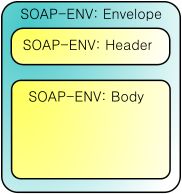
SOAP is a protocol specification for exchanging structured information in the implementation of Web Services in computer networks. It relies on Extensible Markup Language (XML) for its message format, and usually relies on other Application Layer protocols, most notably Hypertext Transfer Protocol (HTTP) and Simple Mail Transfer Protocol (SMTP), for message negotiation and transmission. The following is the structure of SOAP Envelope:
Step 1:
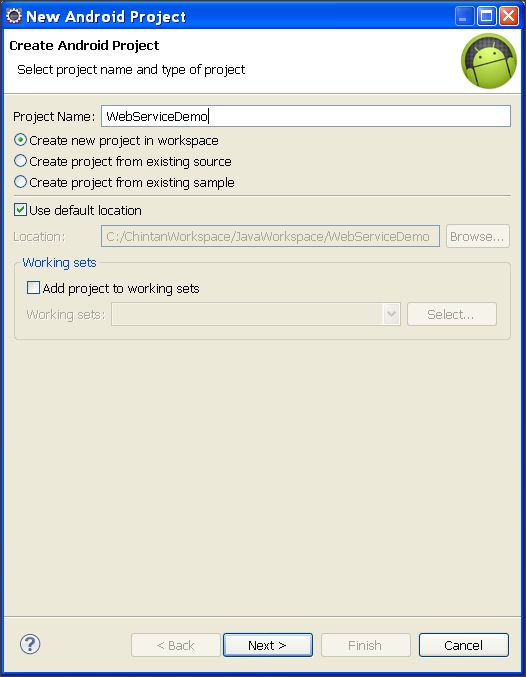
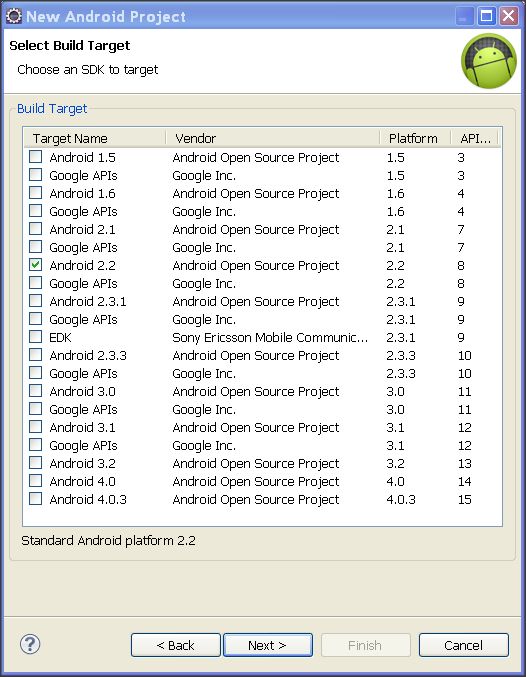
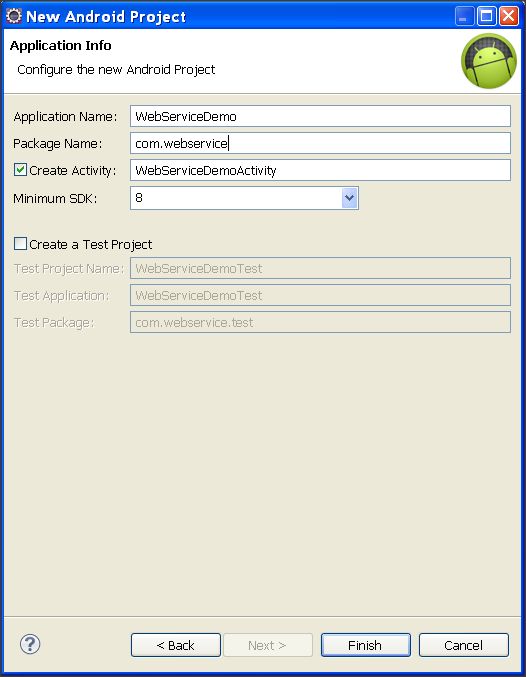
First create a "New Android Project". Name it "WebServiceDemo" like below.
Step 2:
Now right-click on your "WebServiceDemo" project and select "New -> Folder"
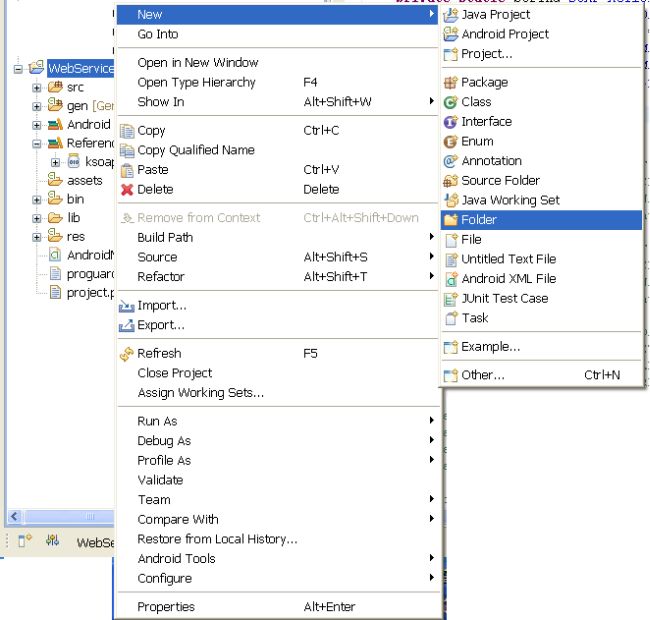
Now, give it a name it "lib". We need to add a SOAP library into this directory.
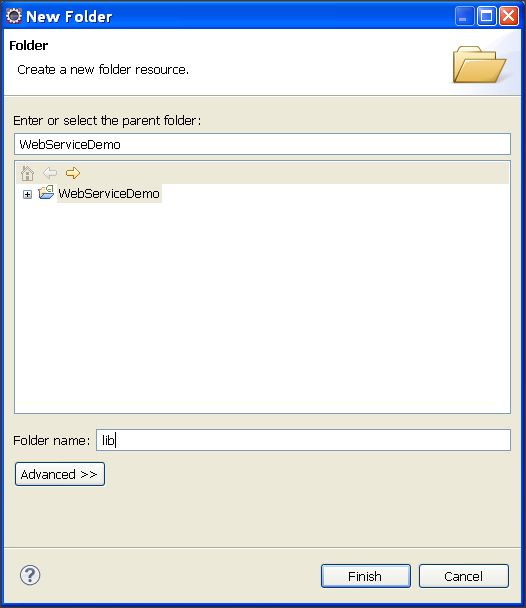
Step 3:
Now download the attached library named "ksoap2-android-assembly-2.6.0-jar-with-dependencies.jar". Copy that file and paste it into the "lib" directory.
After copying, do the following steps:
In this tutorial, we will learn how to call a Web Service using SOAP (Simple Object Access Protocol).
Prerequisites
Web Service, SOAP envelope, WSDL (Web Service Definition Language)
What is SOAP?
SOAP is a protocol specification for exchanging structured information in the implementation of Web Services in computer networks. It relies on Extensible Markup Language (XML) for its message format, and usually relies on other Application Layer protocols, most notably Hypertext Transfer Protocol (HTTP) and Simple Mail Transfer Protocol (SMTP), for message negotiation and transmission. The following is the structure of SOAP Envelope:
Step 1:
First create a "New Android Project". Name it "WebServiceDemo" like below.
Step 2:
Now right-click on your "WebServiceDemo" project and select "New -> Folder"
Now, give it a name it "lib". We need to add a SOAP library into this directory.
Step 3:
Now download the attached library named "ksoap2-android-assembly-2.6.0-jar-with-dependencies.jar". Copy that file and paste it into the "lib" directory.
After copying, do the following steps:
- Right-click on the project.
- Go "Build Path -> Configure Build Path"
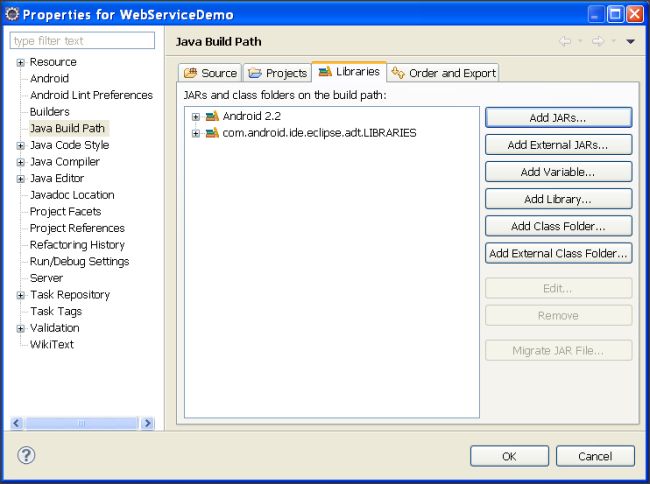
- Now, click on "Add Jars" and select ".jar" file from "project -> lib" directory.
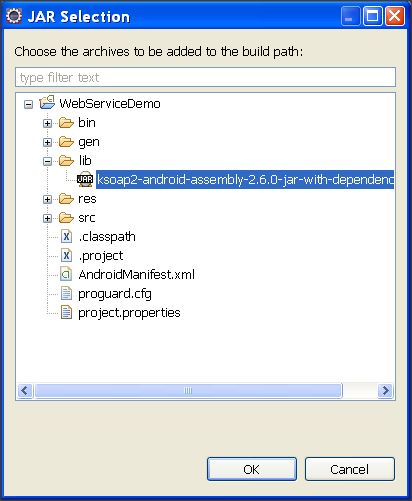
- Click on "Ok" to finish the procedure of adding library to Android application.
Step 4:
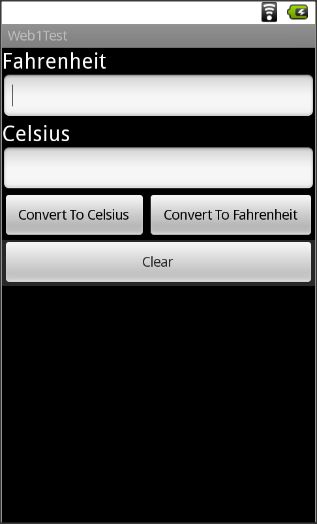
Next we need to create a layout of screen. To do so, go to "WebServiceDemo -> res -> layout -> main.xml"
Open this xml file in editing mode, and place below code.
Main.xml
Next we need to create a layout of screen. To do so, go to "WebServiceDemo -> res -> layout -> main.xml"
Open this xml file in editing mode, and place below code.
Main.xml
<?xml version="1.0" encoding="utf-8"?>
<LinearLayout xmlns:android="http://schemas.android.com/apk/res/android"
android:layout_width="match_parent"
android:layout_height="match_parent"
android:orientation="vertical" >
<TextView
android:id="@+id/textView1"
android:layout_width="wrap_content"
android:layout_height="wrap_content"
android:text="Fahrenheit"
android:textAppearance="?android:attr/textAppearanceLarge" />
<EditText
android:id="@+id/txtFar"
android:layout_width="match_parent"
android:layout_height="wrap_content" >
<requestFocus />
</EditText>
<TextView
android:id="@+id/textView2"
android:layout_width="wrap_content"
android:layout_height="wrap_content"
android:text="Celsius"
android:textAppearance="?android:attr/textAppearanceLarge" />
<EditText
android:id="@+id/txtCel"
android:layout_width="match_parent"
android:layout_height="wrap_content" />
<LinearLayout
android:id="@+id/linearLayout1"
android:layout_width="match_parent"
android:layout_height="wrap_content" >
<Button
android:id="@+id/btnFar"
android:layout_width="wrap_content"
android:layout_height="wrap_content"
android:layout_weight="0.5"
android:text="Convert To Celsius" />
<Button
android:id="@+id/btnCel"
android:layout_width="wrap_content"
android:layout_height="wrap_content"
android:layout_weight="0.5"
android:text="Convert To Fahrenheit" />
</LinearLayout>
<Button
android:id="@+id/btnClear"
android:layout_width="match_parent"
android:layout_height="wrap_content"
android:text="Clear" />
</LinearLayout>
This will create simple following screen.
Step 5:
Now, find out any Web Service, make sure that you can view its WSDL file by writing "?wsdl" after that address.
For example, you have a web service like http://www.w3schools.com/webservices/tempconvert.asmx", so to view the WSDL file, simply write "?wsdl" after this address like:
http://www.w3schools.com/webservices/tempconvert.asmx?WSDL".
You are now done with the Web Service part from the internet. Now you need to extend some portion of the WSDL file. Open the first link in your browser, it will display 2 conversions for you:
This will create simple following screen.
Step 5:
Now, find out any Web Service, make sure that you can view its WSDL file by writing "?wsdl" after that address.
For example, you have a web service like http://www.w3schools.com/webservices/tempconvert.asmx", so to view the WSDL file, simply write "?wsdl" after this address like:
http://www.w3schools.com/webservices/tempconvert.asmx?WSDL".
You are now done with the Web Service part from the internet. Now you need to extend some portion of the WSDL file. Open the first link in your browser, it will display 2 conversions for you:
- CelsiusToFahrenheit
- FahrenheitToCelsius
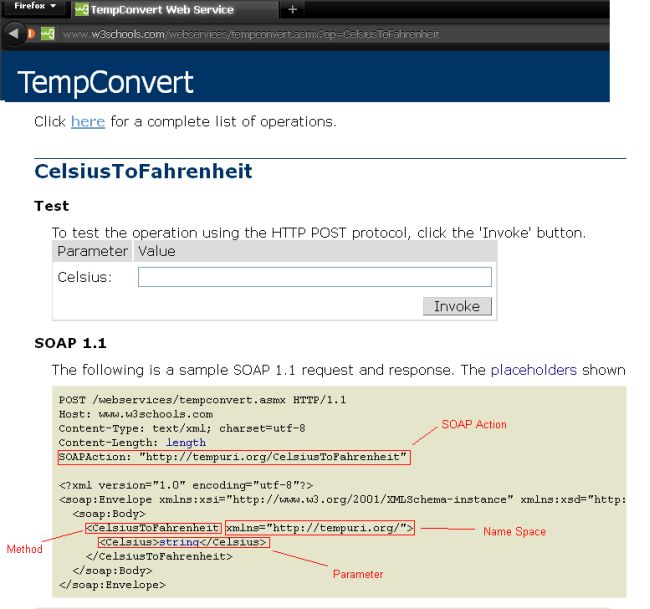
Select anyone of them, and you will see following screen:
For CelsiusToFahrenheit:
For CelsiusToFahrenheit:
- SOAP_ACTION = "http://tempuri.org/CelsiusToFahrenheit";
- NAMESPACE = "http://tempuri.org/";
- METHOD_NAME = "CelsiusToFahrenheit";
For FahrenheitToCelsius:
- SOAP_ACTION = "http://tempuri.org/FahrenheitToCelsius";
- NAMESPACE = "http://tempuri.org/";
- METHOD_NAME = " FahrenheitToCelsius ";
Step 6:
You need to understand some classes before proceeding to use a Web Service.
You need to understand some classes before proceeding to use a Web Service.
- SoapObject (
A simple dynamic object that can be used to build SOAP calls without implementing KvmSerializable. Essentially, this is what goes inside the body of a SOAP envelope - it is the direct subelement of the body and all further sub elements. Instead of this class, custom classes can be used if they implement the KvmSerializable interface.
Constructor:
SoapObject (java.lang.String namespace, java.lang.String method)
- SoapSerializationEnvelope
This class extends the SoapEnvelope with Soap Serialization functionality.
Constructor:
SoapSerializationEnvelope (int version)
Fields:TypeFieldDescriptionbooleandotNetSet this variable to true for compatibility with what seems to be the default encoding for .Net-Services.Methods:Return TypeMethod NameDescriptionvoidsetOutputSoapObject(java.lang.Object soapObject)Assigns the object to the envelope as the outbound message for the soap call. - HttpTransportSE (org.ksoap2.transport.HttpTransportSE)
A J2SE based HttpTransport layer.
Constructor:
HttpTransportSE(java.lang.String url)
Method:Return TypeMethodDescriptionvoidcall(java.lang.String SoapAction, SoapEnvelope envelope)set the desired soapAction header field
Step 7:
Open your "WebServiceDemo -> src -> WebServiceDemoActivity.java" file and enterr following code:
WebServiceDemoActivity.java
Open your "WebServiceDemo -> src -> WebServiceDemoActivity.java" file and enterr following code:
WebServiceDemoActivity.java
import org.ksoap2.SoapEnvelope;
import org.ksoap2.serialization.SoapObject;
import org.ksoap2.serialization.SoapSerializationEnvelope;
import org.ksoap2.transport.HttpTransportSE;
import android.app.Activity;
import android.os.Bundle;
import android.view.View;
import android.widget.Button;
import android.widget.EditText;
import android.widget.Toast;
public class WebServiceDemoActivity extends Activity
{
/** Called when the activity is first created. */
private static String SOAP_ACTION1 = "http://tempuri.org/FahrenheitToCelsius";
private static String SOAP_ACTION2 = "http://tempuri.org/CelsiusToFahrenheit";
private static String NAMESPACE = "http://tempuri.org/";
private static String METHOD_NAME1 = "FahrenheitToCelsius";
private static String METHOD_NAME2 = "CelsiusToFahrenheit";
private static String URL = "http://www.w3schools.com/webservices/tempconvert.asmx?WSDL";
Button btnFar,btnCel,btnClear;
EditText txtFar,txtCel;
@Override
public void onCreate(Bundle savedInstanceState)
{
super.onCreate(savedInstanceState);
setContentView(R.layout.main);
btnFar = (Button)findViewById(R.id.btnFar);
btnCel = (Button)findViewById(R.id.btnCel);
btnClear = (Button)findViewById(R.id.btnClear);
txtFar = (EditText)findViewById(R.id.txtFar);
txtCel = (EditText)findViewById(R.id.txtCel);
btnFar.setOnClickListener(new View.OnClickListener()
{
@Override
public void onClick(View v)
{
//Initialize soap request + add parameters
SoapObject request = new SoapObject(NAMESPACE, METHOD_NAME1);
//Use this to add parameters
request.addProperty("Fahrenheit",txtFar.getText().toString());
//Declare the version of the SOAP request
SoapSerializationEnvelope envelope = new SoapSerializationEnvelope(SoapEnvelope.VER11);
envelope.setOutputSoapObject(request);
envelope.dotNet = true;
try {
HttpTransportSE androidHttpTransport = new HttpTransportSE(URL);
//this is the actual part that will call the webservice
androidHttpTransport.call(SOAP_ACTION1, envelope);
// Get the SoapResult from the envelope body.
SoapObject result = (SoapObject)envelope.bodyIn;
if(result != null)
{
//Get the first property and change the label text
txtCel.setText(result.getProperty(0).toString());
}
else
{
Toast.makeText(getApplicationContext(), "No Response",Toast.LENGTH_LONG).show();
}
} catch (Exception e) {
e.printStackTrace();
}
}
});
btnCel.setOnClickListener(new View.OnClickListener()
{
@Override
public void onClick(View v)
{
//Initialize soap request + add parameters
SoapObject request = new SoapObject(NAMESPACE, METHOD_NAME2);
//Use this to add parameters
request.addProperty("Celsius",txtCel.getText().toString());
//Declare the version of the SOAP request
SoapSerializationEnvelope envelope = new SoapSerializationEnvelope(SoapEnvelope.VER11);
envelope.setOutputSoapObject(request);
envelope.dotNet = true;
try {
HttpTransportSE androidHttpTransport = new HttpTransportSE(URL);
//this is the actual part that will call the webservice
androidHttpTransport.call(SOAP_ACTION2, envelope);
// Get the SoapResult from the envelope body.
SoapObject result = (SoapObject)envelope.bodyIn;
if(result != null)
{
//Get the first property and change the label text
txtFar.setText(result.getProperty(0).toString());
}
else
{
Toast.makeText(getApplicationContext(), "No Response",Toast.LENGTH_LONG).show();
}
} catch (Exception e) {
e.printStackTrace();
}
}
});
btnClear.setOnClickListener(new View.OnClickListener()
{
@Override
public void onClick(View v)
{
txtCel.setText("");
txtFar.setText("");
}
});
}
}
Step 8:
Now, open your "WebServiceDemo -> android.manifest" file. Add the following line before the <application> tag:
<uses-permission android:name="android.permission.INTERNET" />
This will allow the application to use the internet.
Step 9:
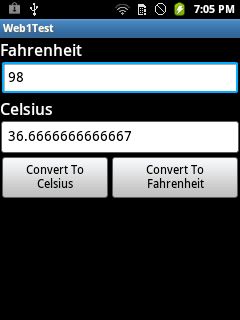
Run your application in the Android Cell. You will get the following outcome:
Note: In the emulator, we need to fix a proxy, so try the application in an Android Cell.
Summary
In this brief tutorial, we learned about Web Services, SOAP envelopes, WSDL files, HTTP transport, and how to use the in an Android application.
Article Extensions
Contents added by pugazhendhi p on Jul 22, 2013
Contents added by Chintan Rathod on Nov 21, 2012
Hi Friends,
I searched for the actual error that has Eclipse problem for "NoClassFound".
I have fixed this by following.
------------------
Right click "project" -> Properties -> Java Build Path -> Order And Explort
------------------

Now, make sure that, you have "Checked" that external added "jar" file as you can see in the snap.
Make sure that order of that external jar file also same like displayed in snap.
Now, Run your project and enjoy.
Thanks & Regards
---------------------
Chintan Rathod
I searched for the actual error that has Eclipse problem for "NoClassFound".
I have fixed this by following.
------------------
Right click "project" -> Properties -> Java Build Path -> Order And Explort
------------------
Now, make sure that, you have "Checked" that external added "jar" file as you can see in the snap.
Make sure that order of that external jar file also same like displayed in snap.
Now, Run your project and enjoy.
Thanks & Regards
---------------------
Chintan Rathod
Contents added by Chintan Rathod on Oct 23, 2012
Following are steps for How to configure Proxy in "Run Configuration" when you are using emulator
Step 1:
Right click on "project" -> Run As -> Run Configuration

Proxy -> your internet access IP address
port -> default 8080
Then click on "Apply".
Now, you can try to run web application in emulator, it will not give you any error regarding network connection.
Step 1:
Right click on "project" -> Run As -> Run Configuration
Proxy -> your internet access IP address
port -> default 8080
Then click on "Apply".
Now, you can try to run web application in emulator, it will not give you any error regarding network connection.
订阅:
博文 (Atom)